Difference between revisions of "Geocoding and Reverse Geocoding Addresses in QGIS"
Huananqiao (talk | contribs) |
Huananqiao (talk | contribs) |
||
| Line 13: | Line 13: | ||
==Data and Software== |
==Data and Software== |
||
QGIS offers several plugins on how to translate a list of addresses to coordinates on a map, or vice versa. We will be using a plugin called MMQGIS to simulate the following theoretical problem: '''we want to know locate the most popular Mexican restaurants around Ottawa so we can choose the best place to open our new restaurant'''. The data used for this tutorial was gathered by compiling the first 20 results of a Google maps search of local Mexican restaurants. Their addresses were collected and formatted in an Excel file, available HERE. |
|||
QGIS offers several methods for converting addresses to map coordinates or coordinates to addresses. This tutorial will use the MMQGIS plugin to complete the following example tasks: geocoding the addresses of Mexican restaurants in Ottawa and converting those addresses into spatial point data. The data used in this tutorial comes from a search for local Mexican restaurants in Ottawa, and the address information has been organized into a table. |
|||
QGIS 3.22 download available at: https://www.qgis.org/en/site/forusers/download.html |
|||
This tutorial was originally written using QGIS 3.22. Since QGIS and MMQGIS are continuously updated, this tutorial has been retested using the current versions. It is recommended that you use the latest stable version of QGIS and install the compatible MMQGIS plugin. |
|||
===Data Format=== |
===Data Format=== |
||
*Note: Only relevant if you are using your own data. |
*Note: Only relevant if you are using your own data. |
||
Before you get started with geocoding using QGIS, make sure that your addresses are stored in a CSV |
Before you get started with geocoding using QGIS, make sure that your addresses are stored in a CSV file that is formatted for UTF-8. The addresses should follow this format: '''Name (optional), Street Address, City, State/Province, Country''' |
||
[[File:data6.PNG]] |
[[File:data6.PNG]] |
||
Revision as of 05:57, 5 October 2026
Contents
Introduction
Geocoding is the process of converting text-based addresses into geographic coordinates. Once the coordinates are obtained, data that originally contained only address information can be displayed, queried, and further analyzed as spatial data in a GIS. Geocoding typically requires address data, reference geographic data, and a geocoding engine to match addresses with locations. Since different services may use different data sources and matching methods, a successful geocoding result does not necessarily mean the returned location or address information is completely accurate. Checking and verifying geocoding results is an important step. Reverse geocoding performs the opposite process, returning the corresponding address based on existing geographic coordinates. This tutorial will use QGIS and the MMQGIS plugin to demonstrate the basic workflows of geocoding and reverse geocoding.
Why Geocode?
Geocoding allows us to quickly find various types of locations, including historical buildings, houses, restaurants, and stores. From simple data analysis to business and customer management and distribution techniques, there is a wide range of applications geocoding can be used for, as we can identify and analyze patterns within the data. With geocoded addresses, you can spatially display the address locations and begin to recognize patterns within the information.
Geocoding software is implemented in a variety of industries, including but not limited to:
- Health: assess patient access to healthcare facilities; study epidemiological patterns of a disease
- Finance: determine lending activity in the community, including demographics data to assist in fair lending efforts
- Public Safety: direct emergency response via locally developed street files and E911 points
- Military: Military Grid Reference System (MGRS) is the geocoordinate standard used by NATO militaries
- Commercial: directly factor geography into the business analytics process; monitor shipping patterns and customer sales
Data and Software
QGIS offers several methods for converting addresses to map coordinates or coordinates to addresses. This tutorial will use the MMQGIS plugin to complete the following example tasks: geocoding the addresses of Mexican restaurants in Ottawa and converting those addresses into spatial point data. The data used in this tutorial comes from a search for local Mexican restaurants in Ottawa, and the address information has been organized into a table.
This tutorial was originally written using QGIS 3.22. Since QGIS and MMQGIS are continuously updated, this tutorial has been retested using the current versions. It is recommended that you use the latest stable version of QGIS and install the compatible MMQGIS plugin.
Data Format
- Note: Only relevant if you are using your own data.
Before you get started with geocoding using QGIS, make sure that your addresses are stored in a CSV file that is formatted for UTF-8. The addresses should follow this format: Name (optional), Street Address, City, State/Province, Country

Installing MMQGIS
MMQGIS is a set of Python plugins for manipulating vector map layers in Quantum GIS: CSV input/output/join, geocoding, geometry conversion, buffering, hub analysis, simplification, column modification, and simple animation. MMQGIS provides an alternative to the Processing toolbox, with verbose progress reporting, an intuitive user interface, direct shapefile/CSV-file access, and some additional capabilities missing from other plugin sets (QGIS Plugins Repository). MMQGIS is a solid choice for geocoding because it allows for a large number of addressed to be geocoded at the same time, and also supports multiple web services for geocoding (Google Maps, OpenStreetMap, US Census Bureau, ESRI Server).
- To install MMQGIS, first select Plugins -> Manage and Install Plugins.

- Next, begin searching for "MMQGIS" in the search bar, it should be the first one to pop up. Select Install Plugin.

Geocoding the Addresses
Now that we have our dataset and the plugin installed, we are ready to start geocoding.
- Under the MMQGIS tab, pan down to Geocode -> Geocode CSV with Web Service.
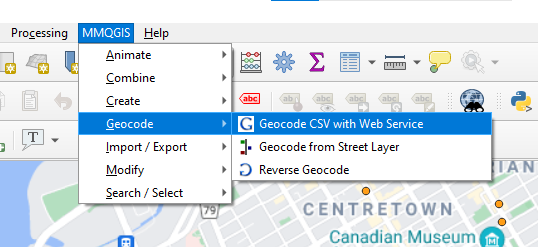

- We should see the following pop-up:

In the “Input CSV File (UTF-8)” field, select the prepared CSV file and set “Address,” “City,” “State,” and “Country” to the corresponding address fields in the data. This tutorial uses OpenStreetMap / Nominatim as the web service, so you do not need to enter a Google API key.
In “Output File Name,” specify the location where the geocoding results will be saved. Note that you must enter the full output file path and filename here, including the correct file extension. For example:
D:/GEOM4008/restaurants.shp
The “Not Found Output List” is used to store records that could not be successfully geocoded; it should be saved as a CSV file, for example:
D:/GEOM4008/notfound.csv
After confirming that all input fields and output paths are correct, click “Apply” to start geocoding. Once processing is complete, check the number of successfully geocoded records and verify whether there are any unmatched addresses in the Not Found Output List.
Common Issues: Incorrect Output File Format
If you encounter an “Unsupported output file format” error or other errors related to output file creation while running geocoding, first check the “Output File Name” field.
This field requires the full output filename; you cannot specify just a folder. For example, if you need to create a Shapefile, use:
D:/GEOM4008/restaurants.shp
Also, ensure that the “Not Found Output List” includes the CSV filename and the “.csv” extension.
Google Maps Web Service Option
Google Maps is an optional geocoding service in MMQGIS and is not required to complete this tutorial. This tutorial uses OpenStreetMap/Nominatim, so a Google API key is not required. If you choose Google Maps as the web service, you will need to create and configure a valid API key as required by the Google Maps Platform. The Google Maps Platform web services are a collection of HTTP interfaces to Google services providing geographic data for user maps applications. Google Maps Platform web services are an interface for requesting Maps API data from external services and using the data within your Maps applications. These products are secured from unauthorized use by restricting API calls to those that provide proper authentication credentials. These credentials are in the form of an API key - a unique alphanumeric string that associates your Google billing account with your project and with the specific API or SDK. The Maps APIs web services use HTTP(S) requests to specific URLs, passing URL parameters and/or JSON-format POST data as arguments to the services. Generally, these services return data in the HTTP(S) response as either JSON or XML for parsing and/or processing by your application. (Google Maps Platform)
Follow this link to generate an API key: https://console.cloud.google.com/project/_/google/maps-apis/credentials
This tutorial will not cover how to geocode using Google's API key's, but it is as simple as selecting Google instead of OpenStreetMap and inserting your API key in the required input box.
- Now that we have applied our geocoding via MMQGIS, we should see our new feature layer containing our new geocoded point locations. It should be noted that the larger the dataset, or the more addresses used, will sometimes take much longer to geocode.

- And if we open the Attribute Table, we see our geocoded addresses, along with some added descriptive attributes, including latitude and longitude.

- If we check our output CSV file, it will show us the addresses that were unable to be geocoded, for whatever reason.

Attribute Table
You'll notice that even though we have our latitude and longitude, their formatting in the attribute table is not ideal, as they are both located in the same column. To adjust the columns to show Lat and Long separately, open the attribute table and select the Field Calculator.

- Create a new field named X to store the longitude. Set the “Output field type” to “Decimal number (real)” and configure the precision as needed. Enter ‘’'$x'‘’ in the “Expression” field, then click “OK.”

- Repeat the above steps to create a new field named Y to store latitude, and enter ‘’'$y'‘’ in the “Expression” field.

In the EPSG:4326 geographic coordinate system used in this tutorial, X corresponds to longitude, and Y corresponds to latitude. For example, in the Ottawa area, the X value is approximately -75, and the Y value is approximately 45. After creating the fields, you should verify that these values match the actual geographic location of the data.
Reverse Geocoding
Reverse geocoding is the process of obtaining the address or location description corresponding to a set of geographic coordinates. In the previous steps, we obtained the spatial location of the restaurant through geocoding. We can therefore use reverse geocoding to further verify the address information associated with these coordinates and help validate the geocoding results.
- Open MMQGIS and select Reverse Geocode.

- Under “Input Layer Name,” select the “restaurants” point layer generated earlier during geocoding, and set “Web Service” to OpenStreetMap / Nominatim. After specifying the output file name and save location, click “Apply” to run the reverse geocoding.

- Once the process is complete, the new “reverse” layer should appear on the map and largely overlap with the original “restaurants” point layer. You can display both layers together and use the “Identify Features” tool to check the attributes of each point and the returned address information.
Please note that the addresses or location descriptions returned by reverse geocoding may not be exactly the same as the original input. Different geocoding services may use different data sources, place names, and address matching rules. Consequently, the overlap of layer positions only indicates that the coordinate locations match and cannot, on its own, prove that all address attributes are completely accurate. It is recommended to check the map location, the returned address, and the attribute information together.


Conclusion
Geocoding is a very simple, effective way to collect latitude and longitude coordinates which can be further used for GIS analysis, cartography, decision making workflow, transaction mash-up, or injected into larger business processes. Or, geocoding can be used in services such as routing and local search. The MMQGIS plugin within QGIS is one of the easiest and most user-friendly geocoding services available for GIS programs. The ease of use and access, combined with the freely available software makes QGIS an easy choice to execute address geocoding.
References
- ArcMap. What is geocoding?-ArcMap | Documentation. (n.d.). Retrieved December 20, 2021, from https://desktop.arcgis.com/en/arcmap/latest/manage-data/geocoding/what-is-geocoding.html
- Goldberg, D. W. (n.d.). From Text to Geographic Coordinates: The Current State of Geocoding. Retrieved December 20, 2021, from https://citeseerx.ist.psu.edu/viewdoc/summary?doi=10.1.1.117.471
- McKie, D. (n.d.). Geocoding using QGIS . Geocoding Using QGIS. Retrieved December 20, 2021, from http://www.davidmckie.com/Geocoding%20Using%20QGIS_New.pdf
- University of Western Ontario. (n.d.). Process for Geocoding in QGIS Using Google and OpenStreetMap Web Map Services. Geocoding Using QGIS. Retrieved December 20, 2021, from https://www.lib.uwo.ca/madgic/projects/gis/Geocoding%20Using%20QGIS.pdf
- What is geocoding? definition and faqs. OmniSci. (n.d.). Retrieved December 20, 2021, from https://www.omnisci.com/technical-glossary/geocoding

