Difference between revisions of "Exploring Clustering In QGIS"
| Line 90: | Line 90: | ||
===DBSCAN clustering=== |
===DBSCAN clustering=== |
||
Density based clustering in QGIS will help us determine and locate clusters of accidents based on the point densities within our collisions dataset. This requires a minimum cluster size (# of points) and a maximum distance between these points. A scenario where this would be practical is if City of Ottawa wanted to know how many patrollers |
Density based clustering in QGIS will help us determine and locate clusters of accidents based on the point densities within our collisions dataset. This requires a minimum cluster size (# of points) and a maximum distance between these points. A scenario where this would be practical is if City of Ottawa wanted to know how many patrollers need to be allocated for this specific location. |
||
====Running the tool==== |
====Running the tool==== |
||
Revision as of 12:56, 5 October 2026
Contents
Introduction
The purpose of this project is to explore the capabilities of open source software such as QGIS. QGIS is one of the many open source softwares we have used in GEOM 4008. In this tutorial which I am writing in 2021, I will be going into vector analysis tools in QGIS which are used to create clusters. I will go step by step going through the Density Based and K-means methods of clustering and I will give the results of my findings. The use of clusters is a practical tool in GIS, it can help group vector data points into separate clusters or groups which the amount is fully configurable by the user. This can be helpful if you have a vast area and you want to divide a task into multiple areas and divide and conquer to accomplish a certain goal. The option is given in ArcPro and while it may have a bigger collection of clustering options, QGIS still has clustering capabilities which are DBSCAN(density based) and K-Means. We will be using the newest version of QGIS at the time of tutorial, version 3.22. The most important part for the start of the project is downloading the latest version, getting the proper data and proper projections which I will go step by step in detailing below. The scope of my project will be going as a City of Ottawa official that wants to investigate incidents(vehicle, bicycle, etc...) and he feels the city is too big and the goal of this tutorial will be on how we can designate multiple smaller areas for him to work with.
Resources
Required Software
To run this analysis, it is best to have the latest version of QGIS. I will detail the steps into getting the newest version.
- If you have an old version, I would start by deleting that one before proceeding to further steps as having two versions of QGIS is not necessary and takes space on the hard drive.
- Click on this link and you will see many options on operating systems you can download QGIS on
- Select either the fastest (4.2.2) or the more stable (3.44.14) download depending on your preference and it should start downloading
- Once it's done downloading add it to your hard drive(if not already done automatically) and you should be ready to use the open source software
Required Datasets
The data that we will be using will be in two forms. Referencing data so we can visualize where we are and data we will use for the clustering.
Referencing
- The Roads dataset will be used to visualize the roads, this is important to add as those incidents and vector data points are on roads so it can be a helpful tool to illustrate the incidents in a smaller scale.
- The Wards dataset is a wards dataset which will be used to see where those incidents are with an Ottawa city border background. All data points will be located within that dataset.
Clustering
- The Traffic Collisions by Location in 2019 dataset is the data set with all the traffic collisions and their frequencies. Their location information will help us separate them into clusters. Once you have added this dataset, I recommend a change as name as it will automatically save as a complicated alphanumeric sequence.
Environment Setup
Add vector data
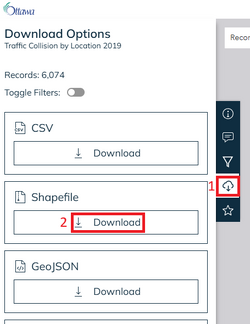
- All datasets can be downloaded by clicking on the cloud icon and selecting Shapefile. Organize these files into a project folder and then extract them.
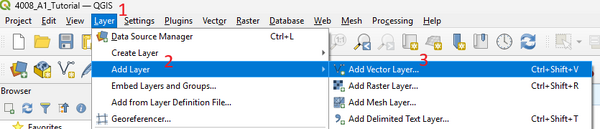
- Go on QGIS and go to Layer menu, Add Layer and select Add Vector Layer
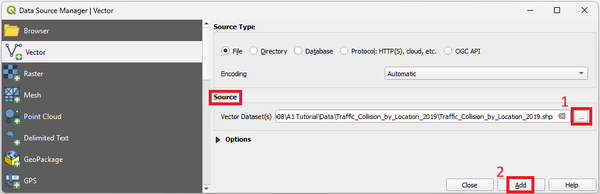
- Under Source, click on the 3 dots, find and select each of your project's downloaded datasets (shp.), and Add.
Projection
Projection is an important step for DBSCAN clustering, you may encounter problems if you do not do it this way. NAD83, specifically UTM zone 18, is an appropriate projection for this project as we are looking at a municipal problem, Ottawa traffic collisions. Projecting to a projection such as this one will be important considering we are dealing with distances when using the DBSCAN clustering. Important: All vector data should be projected that way. To first orient yourself, we'll add Google Satellite basemap.
- Select Plugins, then Manage and Install Plugins..., search "Basemaps", select Basemaps and Install.
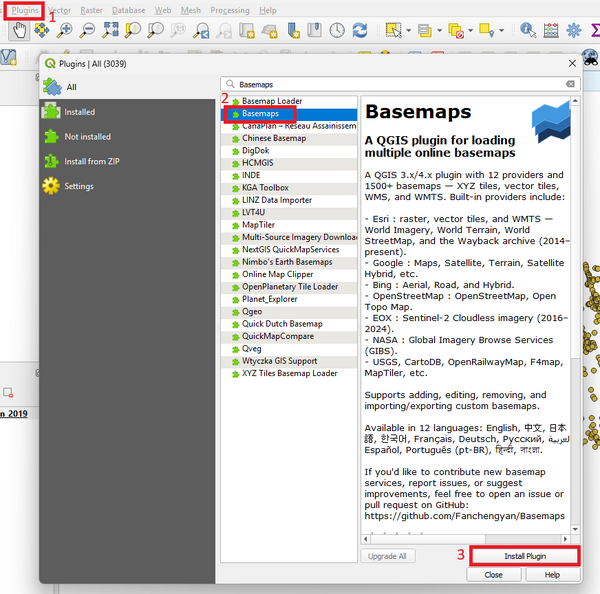
- Reselect Plugins, Basemap Management, Load Basemaps, then choose whichever you feel is best at representing your data. Google Satellite is a common and versatile option. Select your choosing and then Load.
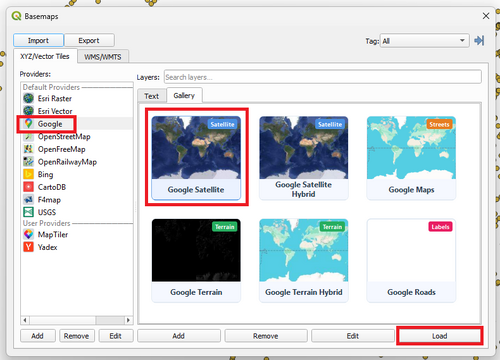
Now it's time to set the projection, to do so we will save those features with a new CRS:
- Right click the Traffic Collisions 2019 layer, select Export then Save Feature As.
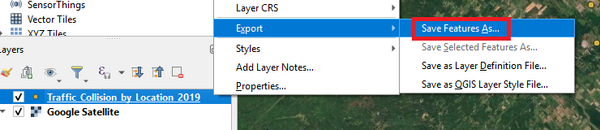
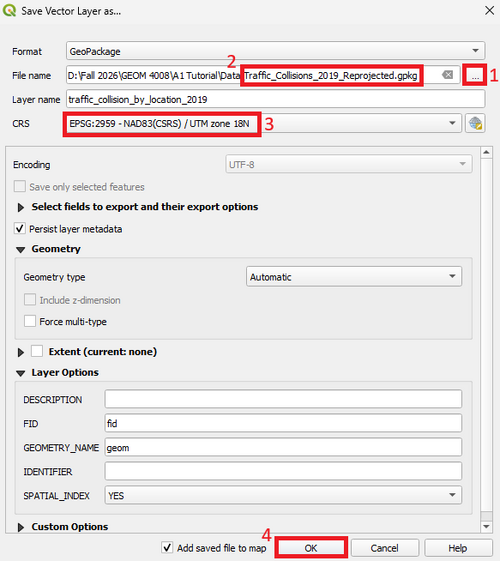
- Choose a location in your project folder and name it. Ex: Traffic_Collisions2019_Reprojected.
- On CRS, click the world icon, search for "EPSG:2959" or "NAD83(CRSR) / UTM zone 18N", select it and press OK.
Symbology
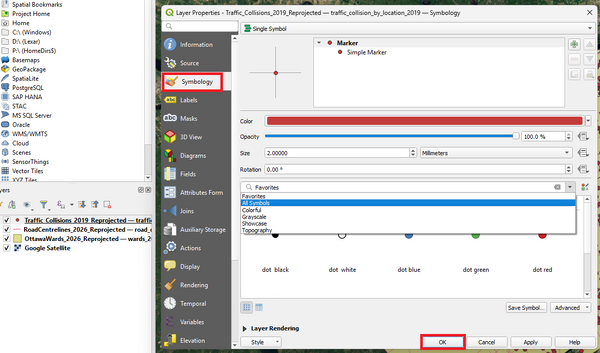
We use symbology as a method of better reference. I would play around as you wish in the properties of the Wards, Collisions and Roads layer. To make sure there isn't too much colour similarities. I recommend to also do this post clustering as you will be classifying separate clusters with different colours. The next step will help us classify roads better.
- Right click on the layer, go to Properties, select Symbology, and click OK once satisfied. Make sure to click Apply each time you change the symbology.
Rule based classification
To visually separate the highways from other roads, this can be done through symbology as well.
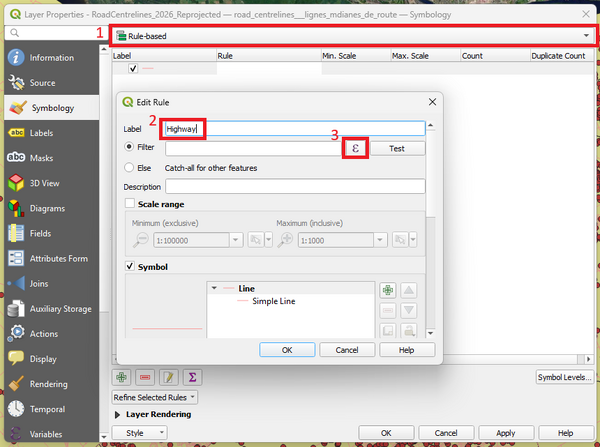
- By going to the Symbology tab again, hover over the top drop down menu and select Rule-Based. Double click the row, type 'Highway' in Label, and then click the expression icon.
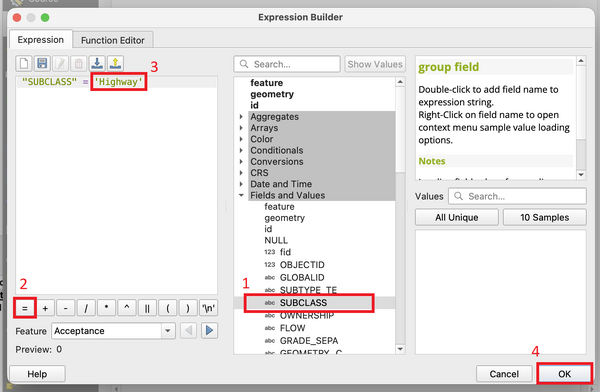
- Under the expression tab, enter "SUBCLASS" = 'Highway' by either manually typing it or under Field and Values, double click on SUBCLASS, double click =, type 'Highway', and then select OK.
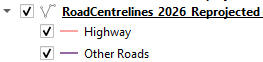
- Repeat this for other roads by clicking + icon to add a new rule, type 'Other Roads' in Label, and select Else as it's the other condition. In the Layers pane it should look something like this:
Analysis
Once you are done setting up the environment, we can now start with the main purpose of the tutorial which is exploring two classification tools, DBSCAN and K-means, coupled with a boundary tool, Concave hull. Once this is done we will have a good picture on how we can proceed in assigning areas to investigate collisions in Ottawa.
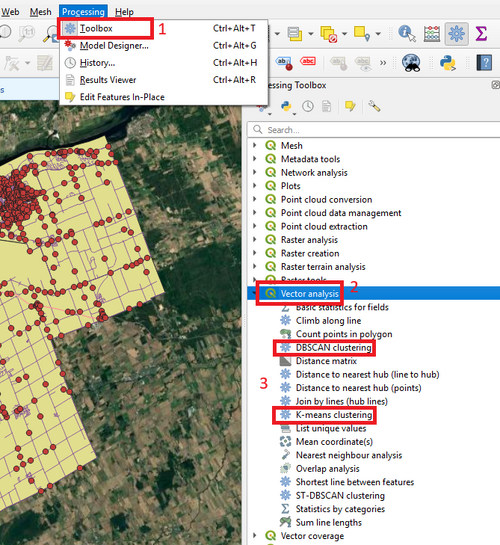
- To find the necessary tools, under the Processing tab select Toolbox, search or scroll to find both clustering methods within Vector analysis or Concave hull (by layer) within Vector geometry.
DBSCAN clustering
Density based clustering in QGIS will help us determine and locate clusters of accidents based on the point densities within our collisions dataset. This requires a minimum cluster size (# of points) and a maximum distance between these points. A scenario where this would be practical is if City of Ottawa wanted to know how many patrollers need to be allocated for this specific location.
Running the tool
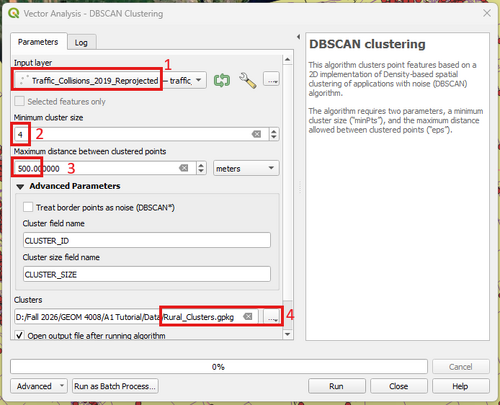
- Select DBSCAN clustering, add projected collisions layer into Input layer, select a desired value for Minimum cluster size and Maximum distance between cluster points - we are working in meters so it is best to stay in this. Then label and specify the path and press Run.
Tips: For min size, it is best to use a value greater than the dimension you are working in. For example, this is 2D so I would like to set my value at 3 or higher. Max distance depends fully on the input data and logical sense associated with it. It is recommended to attempt many combinations of each parameter to see what yields the best result for your objective.
- Based on this scenario, the parameter combination which captured both rural and urban clusters were a min size of 4 and distance of 500m.
Visualizing results
You will now have a new vector layer called "Clusters" with a table entry named "CLUSTER_ID". To visually differentiate these clusters, use unique colours.
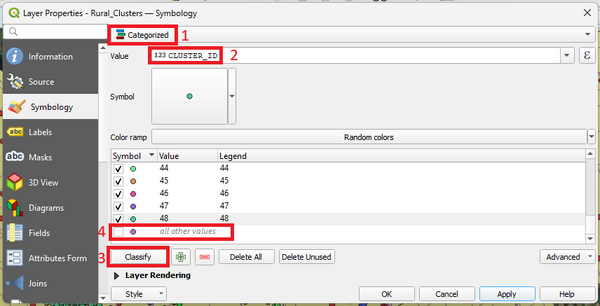
- Right click Clusters layer, go to "Symbology", select Categorized in the drop down menu of classification.
- In Value, select "CLUSTER_ID", click on Classify to get a preview, scroll down and uncheck all other values to remove the noise (points that didn't fall into a cluster), and click Apply.
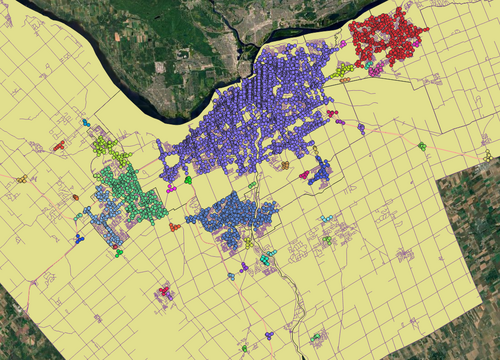
This is how it should appear:
Interpreting results
If the min cluster size was larger than 4, it would fail to capture rural areas. However, the output also poorly represents Ottawa's urban clusters in the downtown area by creating one mega cluster. The mega cluster contained over half of the dataset recorded collisions, thus providing no useful context. To account for this, re-running this tool on the mega cluster with same max density distance but large min clusters can help determine urban clusters.
- Select one of the points in the mega cluster using the selection icon to find its cluster ID.
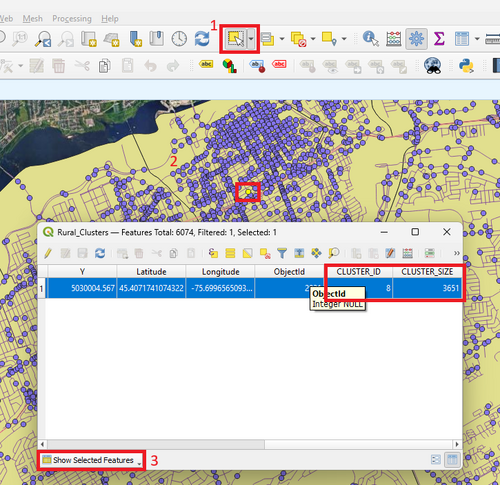
- In the cluster layer attribute table, select Select by Expression and enter "CLUSTER_ID IS 'X'", then click Select Features, and export this selected feature layer.
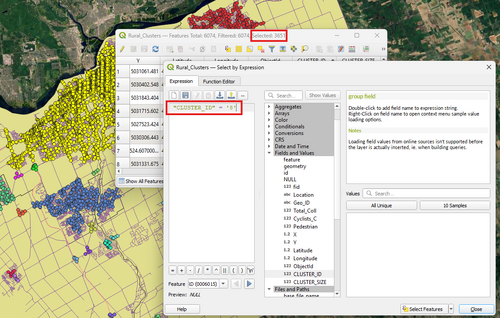
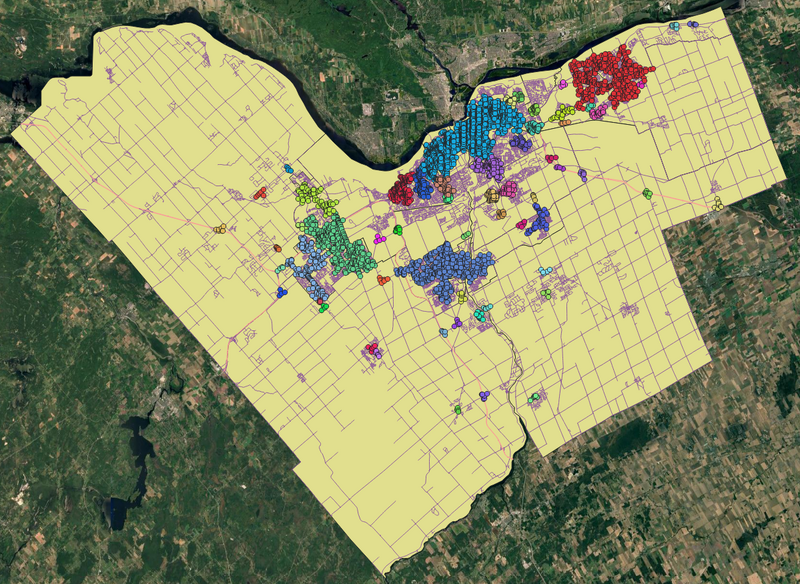
- Repeat the same DBSCAN steps for urban clusters, however change the min cluster to a much higher value to account for frequent collision occurrence in urban centres.
Below are the new results. It is a better representation than just running the dataset on a one-fits-all parameter, however the core of Ottawa still shows weak context:
K-means clustering


K-means clustering will create clusters based on the amount given so you tell QGIS how many you want and they will give you that amount. Useful if you already have a set of officials and you want to split them.
The steps are described below:
- Select "K-means clustering"
- You will get a window(as pictured in Figure 8) and select that same projected collisions vector layer from the other form of clustering
- You will then select a number of clusters that you want to separate the data in(as in the pictured example on that same Figure)
- Click OK
Figure 9 shows the results
To visualize the clustering, repeat the same steps to differentiate the colours as done in for the DBSCAN clustering. The result should be similar in terms of the coloured points we would get as a result despite the clusters being different in high likelihood.
Concave Hull

We have now got our clusters that we desire but we want the officials to get a region assigned. How can we get those regions traced out more clearly. We have create some vector layers which will be polygons that will contain the points in each cluster. You will do those steps for both DBSCAN and K-means methods as they will be identical.
To add those polygons we need to first select them by an expression:
- Right click on the Clusters
- Click on "Open Attribute Table"
- Click on "select features using an expression" which is in the icons over the attribute table
- Then you type "CLUSTER_ID"(it show start showing up once you start typing it) and "=0" which is the first cluster(as pictured on Figure 10)
- Click the "Select Features" button at the bottom of the window


Keep that window open and go back to your processing toolbox:
- Search "Concave hull" or go to Vector geometry and select "Concave hull(alpha shapes)"
You will see a window like on Figure 11
- Choose your Cluster that you worked on then check the "Selected Features Only" box
- Give the threshold 0.8 and uncheck the "Allow Holes" box.
- Click OK
You will then go back to the select by expression window and then change the CLUSTER_ID value to the next cluster and repeat for every cluster.
This should get you a polygon with a region for each official to go towards.
The outcome shown on Figure 12
Conclusion
The clustering methods in QGIS are very useful and relatively easy to use as shown in this tutorial. When using vector point data and there is a need for something to be divided, I think clustering does a good job at determining areas in which we can divide some tasks and for that it makes it an effective tool to use. I will say that the DBSCAN clustering method is incredibly particular and has given me some trouble to understand how it works. However, the solution to that issue which I have described is very straightforward and it is important to really follow the steps to use the tool. Doesn't matter if it's trying to investigate collisions or divide areas of garbageman using h ouse locations, that tool has incredible potential in terms of urban planning or any purposes where we would need to divide and conquer. It might not be as pronounced as the tool we have for ArcGIS but it is importantly a good open source alternative that will do the job when other more expensive software is not widely available.
Future Work
There definitely is a lot of future work in terms of the potential of something like this. You can add more components and maybe include some other GIS tools such as network analysis to calculate the most cost affective ways to investigate those areas(less gas consumption is better and could save city money). Use interpolation to maybe predict possible incidences of accidents. Future work more from a QGIS perspective is to include more methods of clustering as well. There is a lot that can be done around vector points that contain location data but that would be more suited for a separate tutorial not to overwhelm a user.
References
- Download · QGIS Web Site. (2024). Qgis.Org. https://www.qgis.org/download/
- Road Centrelines. (2025). Ottawa.Ca. https://open.ottawa.ca/datasets/ottawa::road-centrelines/about
- Traffic Collision by Location 2019. (2019). Ottawa.Ca. https://open.ottawa.ca/datasets/ottawa::traffic-collision-by-location-2019/about
- 24.1.22. Vector analysis — QGIS Documentation documentation. (2026). Qgis.Org. https://docs.qgis.org/3.44/en/docs/user_manual/processing_algs/qgis/vectoranalysis.html
- Wards 2022-2026. (2022). Ottawa.Ca. https://open.ottawa.ca/datasets/ottawa::wards-2022-2026/about
Very good support video k-means clustering:
- Kremer, Y. [Yannick Kremer]. (2017, February 4th 2019). QGIS Tutorial Unsupervised classification : K-means clustering [Video]. YouTube. https://www.youtube.com/watch?v=-wLCaRO44p4

